Boost Your Blazor Server Performance: Stop Using Long Polling!

If you're building a Blazor Server application and noticing performance issues—high latency, slow UI updates, or excessive server load—there’s a chance you’re unknowingly using Long Polling instead of WebSockets.
By default, some hosting environments such as Azure Web Apps fall back to Long Polling, which can severely impact performance. This happens because WebSockets, the recommended transport for Blazor Server, is not always enabled by default.
I'll show you how to check if your app is affected and how to fix it by properly enabling WebSockets. A simple configuration tweak can significantly reduce latency, improve responsiveness and lower server resource consumption.
Blazor Communication
Blazor is a modern web framework developed by Microsoft that allows developers to build interactive web applications using C# and .NET, instead of relying entirely on JavaScript. It provides a seamless way to create rich, client-side experiences while leveraging the power of .NET for logic and backend integration.
Blazor comes in two main hosting models, each with its approach to rendering and communication:
Blazor Server: Runs the UI logic on the server and sends UI updates via SignalR. The browser acts as a thin client. It has faster startup time and smaller downloads. The centralized processing (good for security and access control) is also a pro. However, requires a constant connection to the server and can suffer from latency and performance issues if not configured correctly.
Blazor WebAssembly: Runs entirely in the browser using WebAssembly. The app is downloaded and executed on the client-side. It works offline after loading, reducing server load. However, the initial download size is larger and performance depends on client hardware.
In Blazor Server, every interaction with the UI requires a round trip between the browser and the server, which means that efficient communication is critical for good performance.
Blazor Server applications rely on real-time communication between the client and server to update the UI dynamically. This communication is handled by SignalR, which supports multiple transport methods:
WebSockets: Opens a persistent connection between the client and server, allowing real-time updates with minimal overhead.
Long Polling: The client repeatedly sends HTTP requests, waiting for the server to respond with updates. When a response is received, another request is immediately sent.
Blazor Server prefers WebSockets, but if it's unavailable (e.g., due to hosting restrictions or misconfiguration), it automatically falls back to Long Polling, which is significantly less efficient.
Identifying the Problem
If your Blazor Server application feels slow, lags when updating the UI, or consumes too many server resources, it might be using Long Polling instead of WebSockets. You can check this easily using your browser’s developer tools.
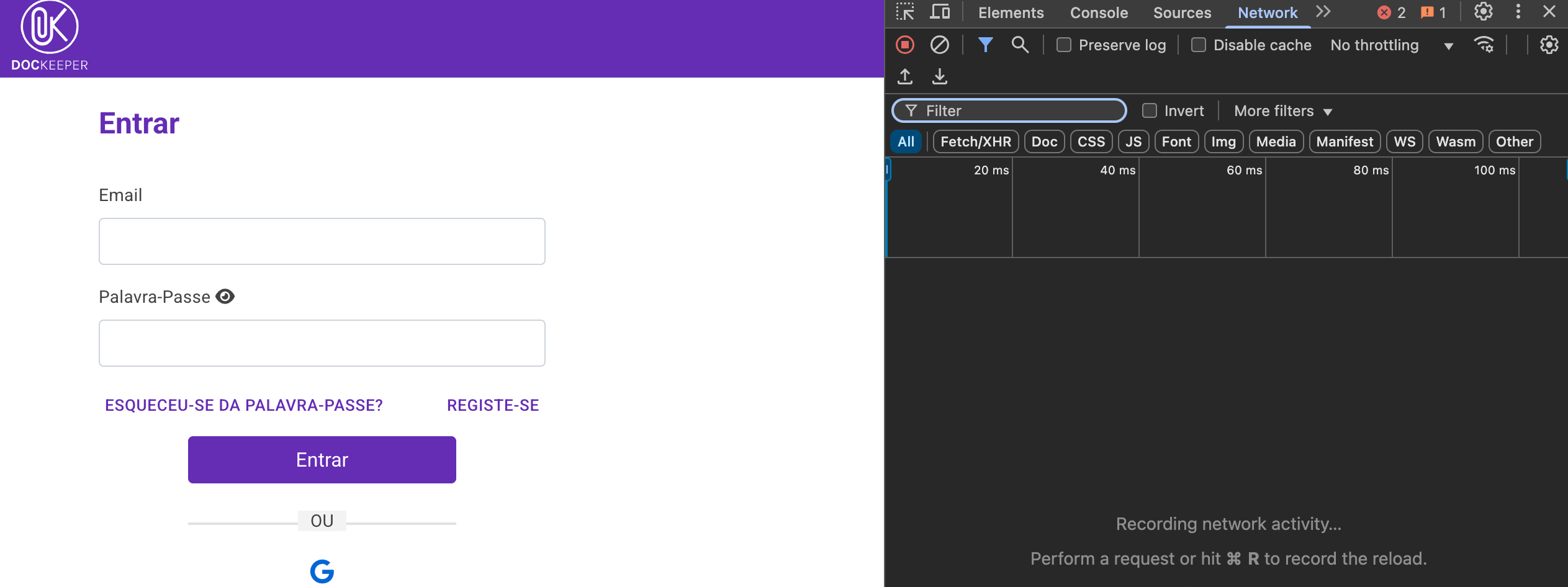
Step 1: Open Developer Tools
Open your Blazor Server application in Google Chrome, Edge, or another modern browser.
Press F12 or Ctrl + Shift + I (Windows/Linux) or Cmd + Option + I (Mac) to open Developer Tools.
Go to the Network tab.
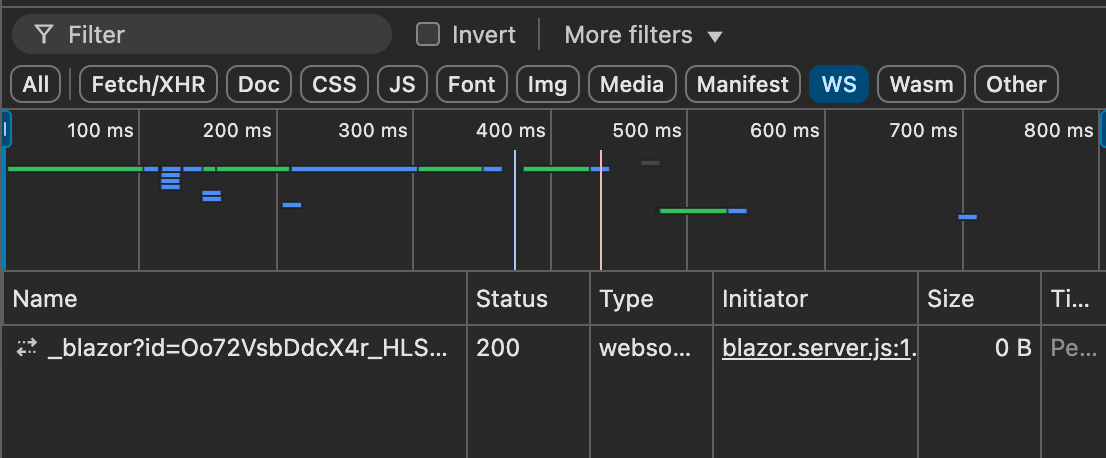
Step 2: Check for WebSocket Connections
Click on the WS (WebSockets) filter in the Network tab.
If you see a connection like this:
wss://yourapp.com/_blazor?id=...Your app is using WebSockets. If there’s no WebSocket connection, your app is likely falling back to Long Polling.
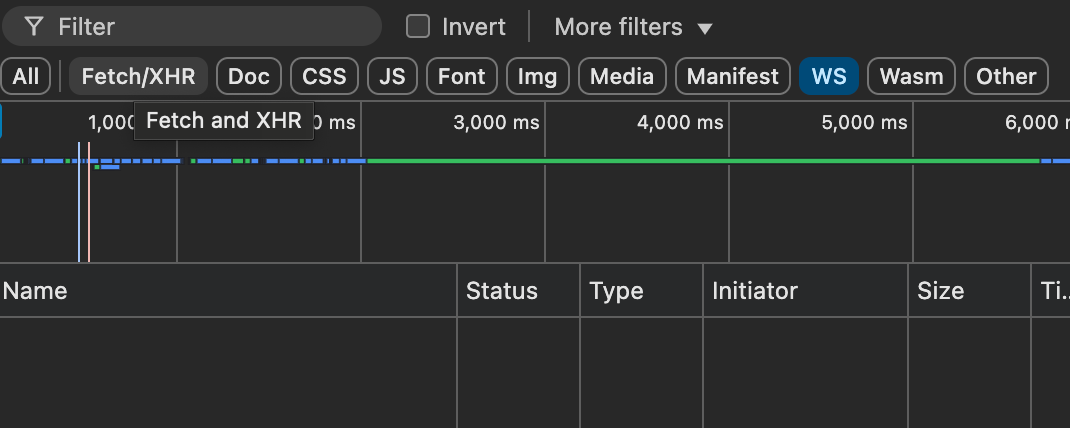
Step 3: Detect Long Polling Requests
Click on the XHR filter in the Network tab.
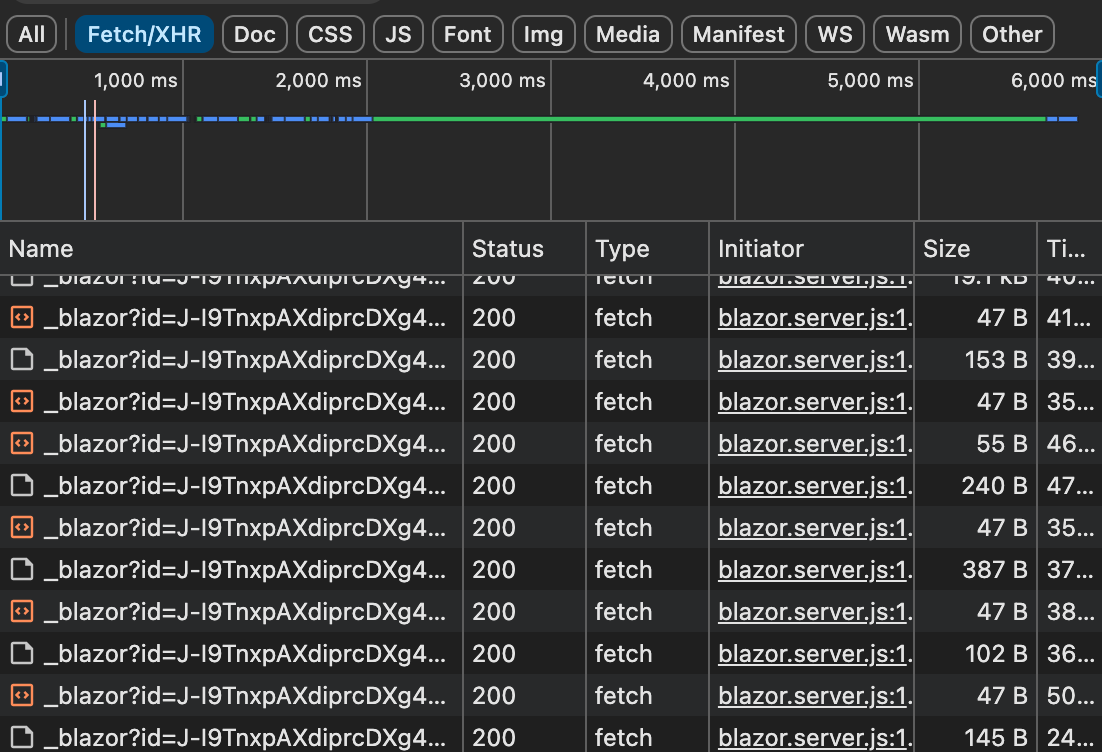
Look for repeated requests to endpoints like:
https://yourapp.com/_blazor?id=... https://yourapp.com/_blazor/negotiateIf you see many frequent XHR requests (instead of a single persistent WebSocket connection), your app is using Long Polling.
These are some key signs of Long Polling Issues:
High number of network requests to
_blazor?id=...Inconsistent UI responsiveness due to frequent HTTP request cycles.
Increased server load as each request creates a new connection.
Fixing the Issue
If your Blazor Server app is using Long Polling instead of WebSockets, it's time to fix it! By enabling WebSockets, you’ll improve performance, reduce latency, and lower server resource usage.
Step 1: Enable WebSockets in Azure App Service
If you’re hosting your Blazor Server app on Azure App Service, WebSockets is disabled by default. You need to enable it manually:
Go to the Azure Portal.
Navigate to App Services and select your application.
In the left menu, go to Configuration → General Settings.
Find the WebSockets setting and turn it ON.
(Optional) Enable ARR Affinity to ensure clients stay connected to the same server instance.
Click Save and restart your app.
Now your app can use WebSockets!
Step 2: Force WebSockets in Blazor Server
Even after enabling WebSockets, Blazor Server may still fall back to Long Polling. You can explicitly tell SignalR to use only WebSockets.
Modify your Program.cs file:
using Microsoft.AspNetCore.Http.Connections;

var builder = WebApplication.CreateBuilder(args);

builder.Services.AddServerSideBlazor()
      .AddHubOptions(options => {
             options.Transports = HttpTransportType.WebSockets; // Force WebSockets });

var app = builder.Build(); app.MapBlazorHub();

app.MapFallbackToPage("/_Host");

app.Run();
This ensures that Blazor Server does not fall back to Long Polling.
If you still see XHR requests instead of WebSockets, ensure that:
WebSockets is enabled on your hosting provider.
Your firewall/load balancer allows WebSocket traffic.
No browser extensions or security policies are blocking WebSockets.
The Performance Impact
Now that you've switched your Blazor Server app from Long Polling to WebSockets, let's talk about the real-world benefits this brings.
With Long Polling, each client sends frequent HTTP requests, forcing the server to continuously process and respond to new connections. This consumes More CPU resources, More network bandwidth, More server memory. By switching to WebSockets, the server maintains a persistent connection, drastically reducing overhead and improving scalability.
Long Polling introduces delays because each request-response cycle takes time. WebSockets, on the other hand, allow for instant, real-time updates.
If your app has many concurrent users, Long Polling will quickly overwhelm your server. Each new connection means a new HTTP request cycle, which doesn't scale well. With WebSockets Blazor makes fewer connections per client which results in better handling of real-time data and smoother performance under heavy load.
Final thoughts
Optimizing your Blazor Server app by switching from Long Polling to WebSockets can make a huge difference in performance, scalability, and user experience.
Key Takeaways
✅ Long Polling is inefficient – it increases server load, network traffic, and UI latency.
✅ WebSockets provide real-time, low-latency updates with less resource consumption.
✅ Azure App Service disables WebSockets by default, so enabling it manually is crucial.
✅ Forcing WebSockets in Blazor Server prevents SignalR from falling back to Long Polling.
If you haven’t yet:
✔ Check your Blazor Server app using Developer Tools.
✔ Enable WebSockets in your hosting environment.
✔ Force WebSockets in your Blazor configuration.
✔ Monitor performance improvements after the change.
By making these simple adjustments, your Blazor Server app will be faster, more efficient, and better prepared for scaling.
Have you encountered performance issues with Blazor Server? Let me know in the comments or reach out—I’d love to hear about your experience!